
Auditoria must access the vendor invoices for all unpaid invoices in Sage Intacct before a SmartFlow is run to avoid having the invoices uploaded manually. When an Auditoria SmartFlow skill is enabled for the first time, complete the following steps to upload unpaid invoices in Sage Intacct to Auditoria before you run the SmartFlow.
-
- Log in to Sage Intacct with an Administrator account and go to Company > Setup > Email Templates.
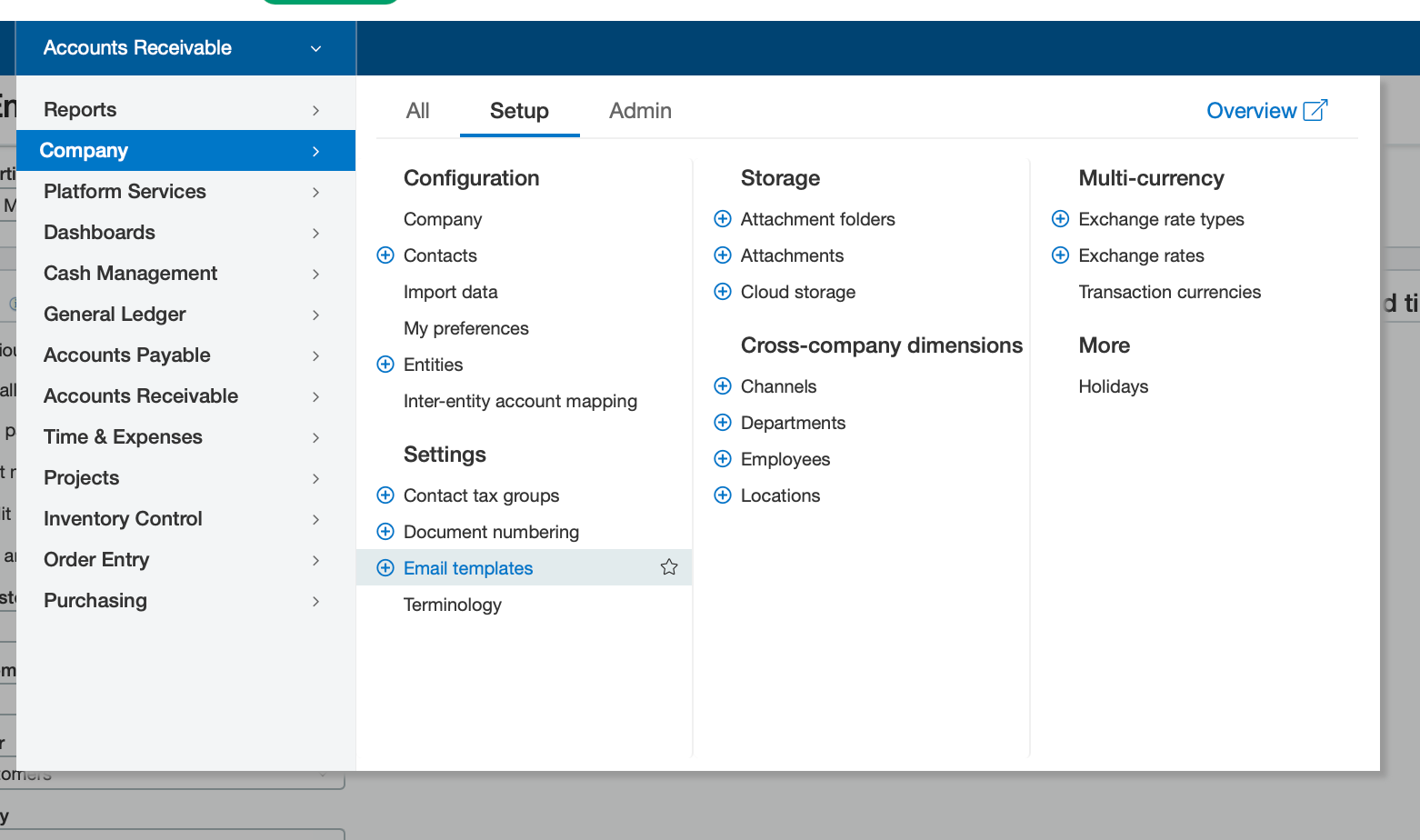
- In the Email Templates page, enter the following template details:
-
-
- Name -provide your template name (for example, EMAIL-TEMPLATE.
- Template Type - AR INVOICE
- Reply To - <sourcetoken>@invoice-inbound.auditoria.ai
- To - <sourcetoken>@invoice-inbound.auditoria.ai
- Subject: {!ARINVOICE.RECORDID!}
- Message: {!ARINVOICE.RECORDID!}

-
-
- Click Save.
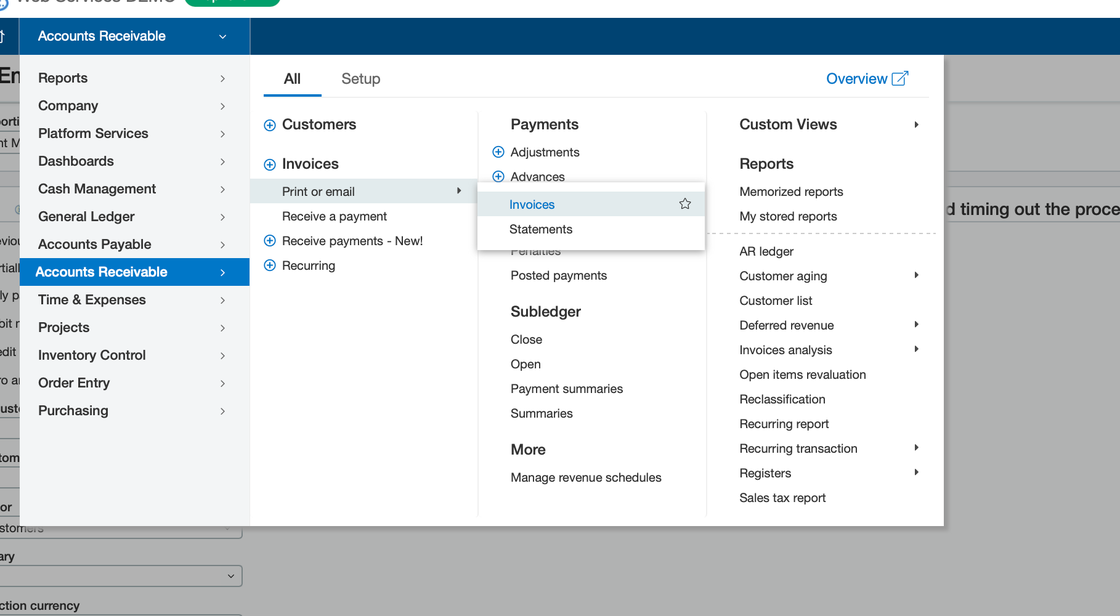
- Go to Accounts Receivable > All > Invoices > Print or email > Invoices.
- In the Time Periods section of the Print/Email Invoices page, select the time period for which you will need the invoice PDFs.

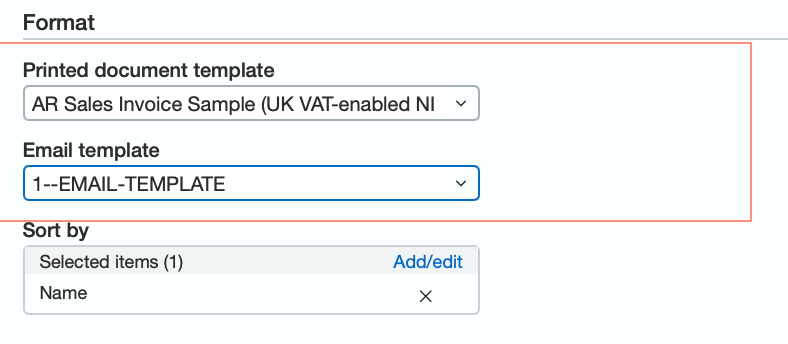
- In the Printed Document Template field of the Format section, select the PDF template from the pulldown menu.
- In the Email Template field of the Format section, select the PDF template just created.
- Click the View button in the upper right corner.
- Click the Print column header to deselect all of the email checkboxes.
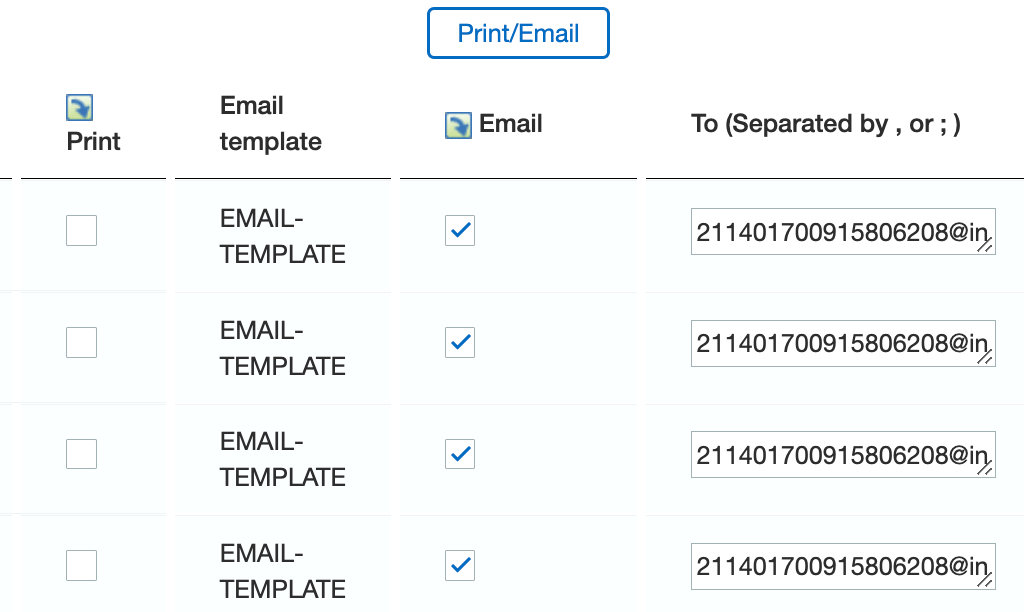
- Click the Email column header to select all these email checkboxes.
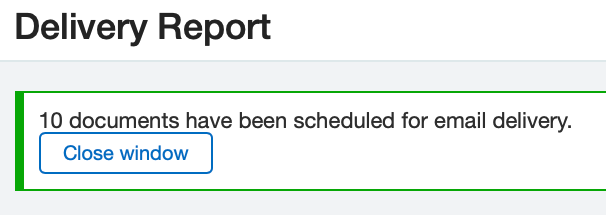
- Click Print/Email to complete the setup process. You will receive a confirmation message.
- Log in to Sage Intacct with an Administrator account and go to Company > Setup > Email Templates.
Auditoria Source Token
For instructions on obtaining your Auditoria source token, see Get your Auditoria Source Token.