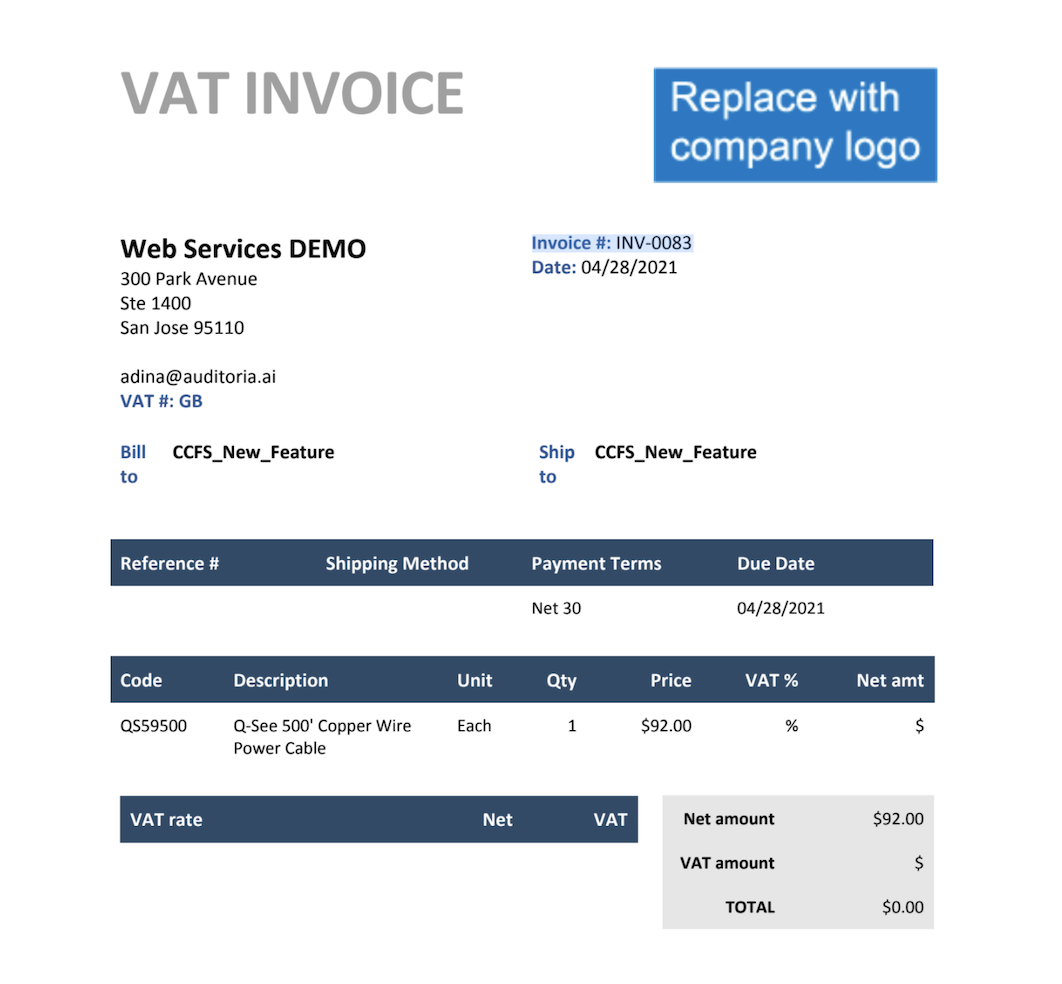
To generate a custom PDF template for invoices in Sage Intacct, first select your custom template or add a new template. After selecting your template, set the template for Sales Invoice. Refer to the procedures below to complete this process.
View or Add a Custom Template
-
- Go to Platform Services > Smart Event.
- In the Printed Document Templates page, you can view the existing templates available for Order Entry. Note the name of the template to be used for the sales invoice PDF.
- Optionally, to add a new template, click Add and enter the template details in the Printed Document Template Information page.
- Click Save.
Set Your Custom Template for Order Entry - Sales Invoice
- Go to Order Entry > Setup > Configuration.
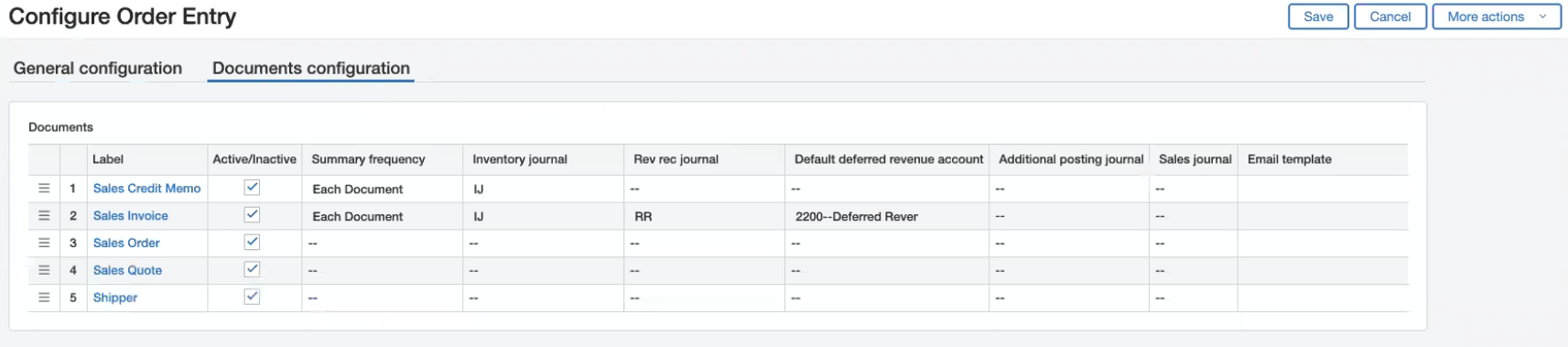
- In the Configure Order Entry page, click Documents Configuration.
- in the Label column of the Documents section, click Sales Invoice.
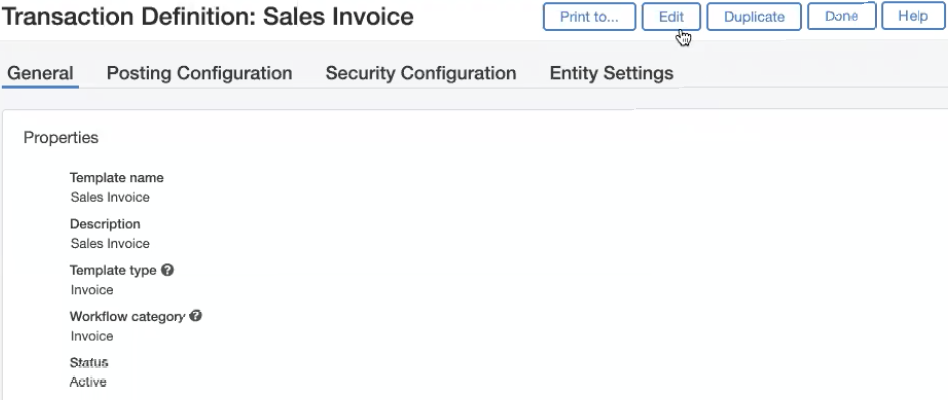
- In the Transaction Definition: Sales Invoice window, click Edit.
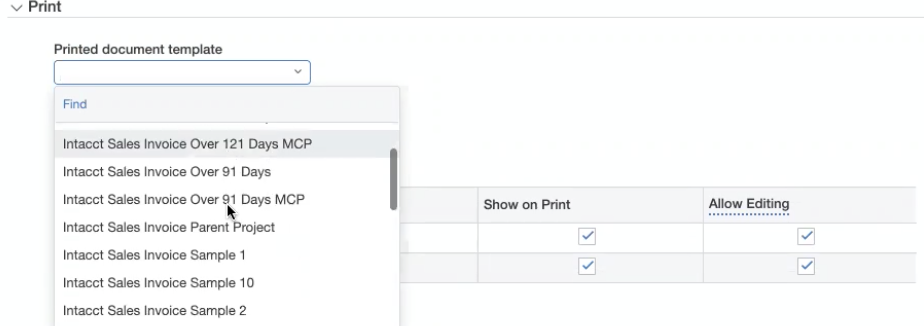
- In the Printed document template pulldown menu in the Print section, select your sales order template and click Save.
- In the Configure Order Entry page, click Save.
Example of a Custom PDF Sales Invoice