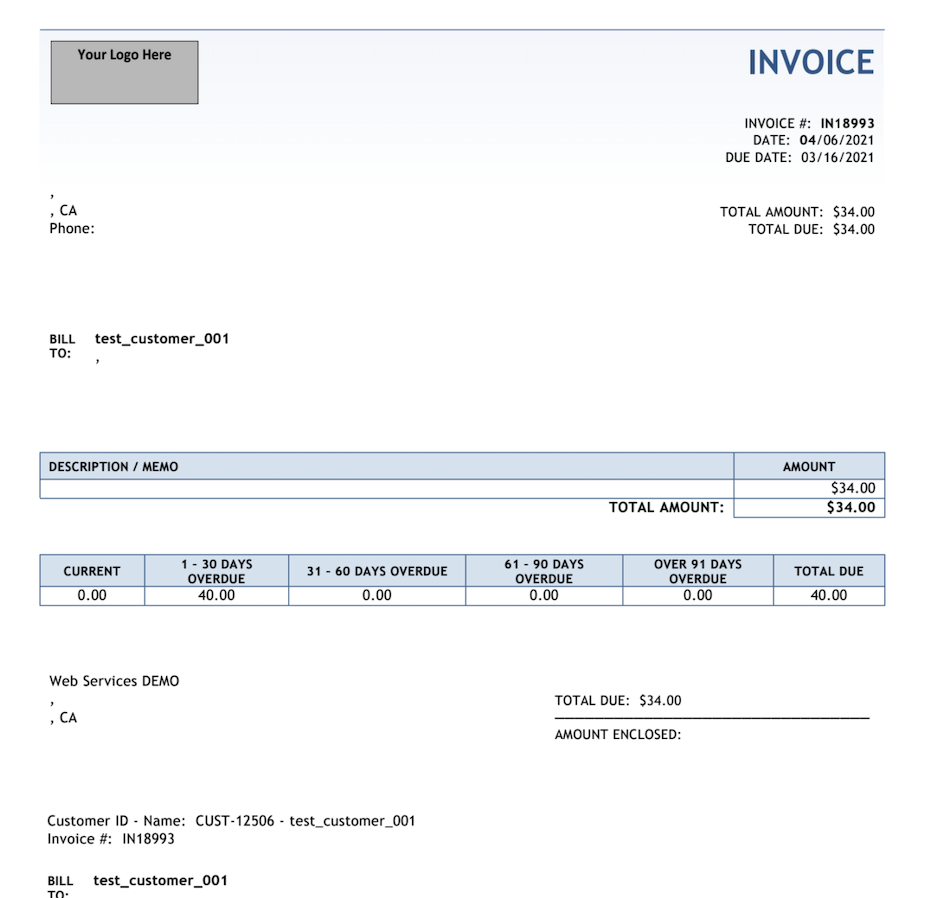
To generate a custom PDF template for invoices in Sage Intacct, first select your custom template or add a new template. After selecting your template, set the template for AR Invoice. Refer to the procedures below to complete this process.
Note: The following procedures do not apply to sales invoices. To generate a custom PDF for sales invoices, you must first create a Smart Event with Order Entry Transaction and select Sales Invoice as the Document Type. For instructions on the process, see Set Up Custom PDF Template for Sales Invoices in Sage Intacct.
Select or Add Your Custom Template
- Go to Platform Services > Printed Document Templates.
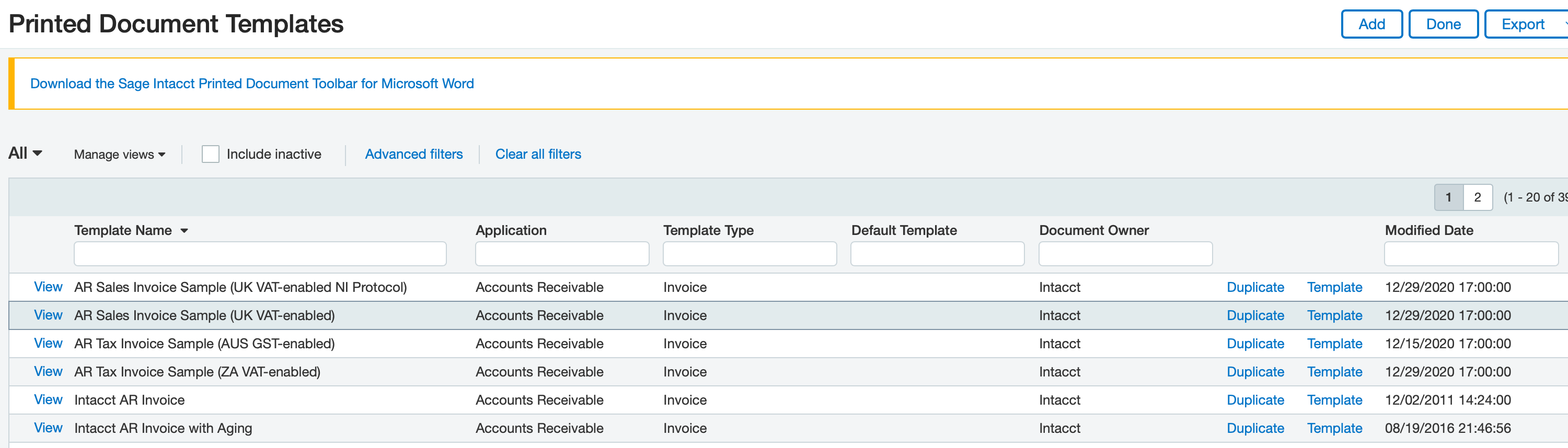
- In the Printed Document Templates page, you can select one of the existing AR invoice templates or you can add a new template by clicking Add.
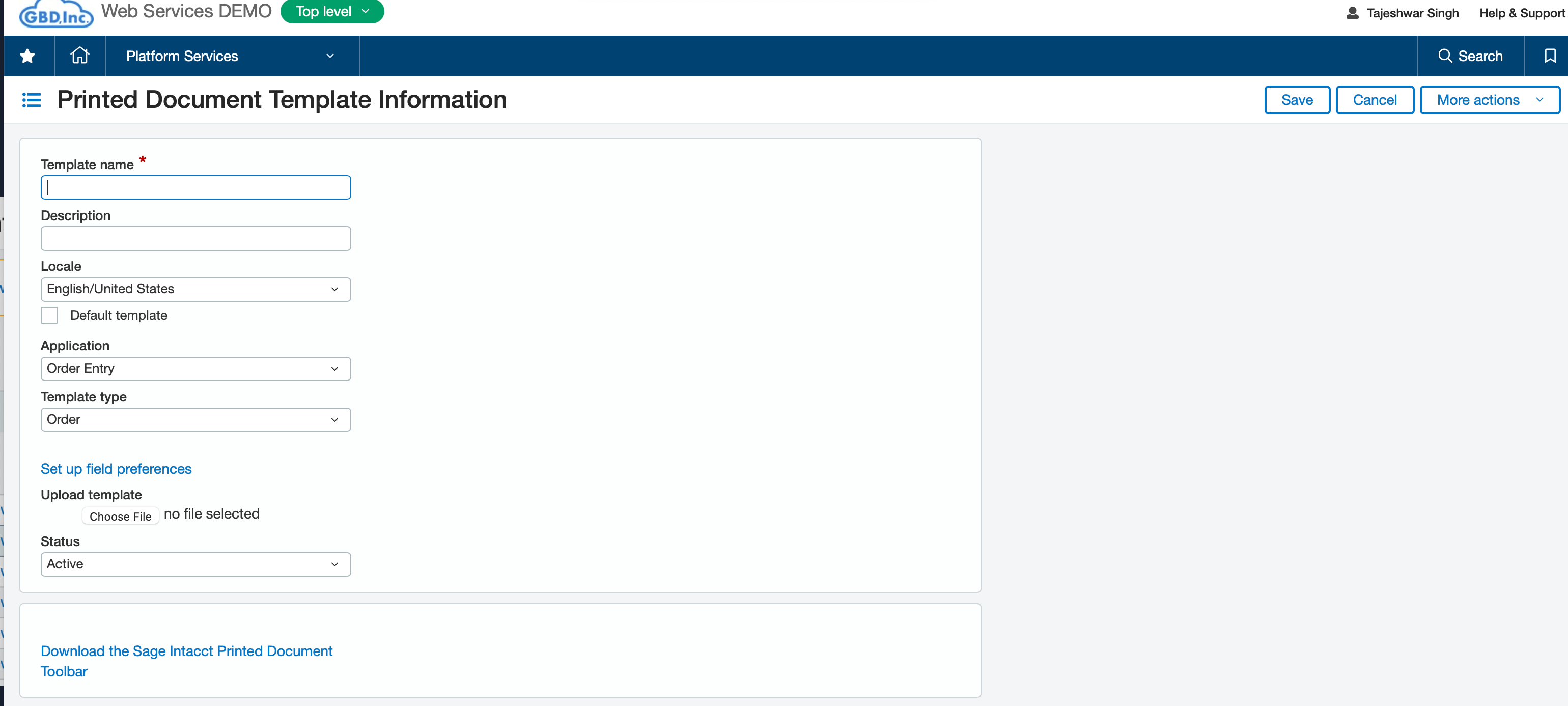
- Optionally, to add a new template, enter the template details in the Printed Document Template Information page and click Save.
Set Your Custom Template for AR Invoice
- Go to Accounts Receivable > Setup > Configuration.
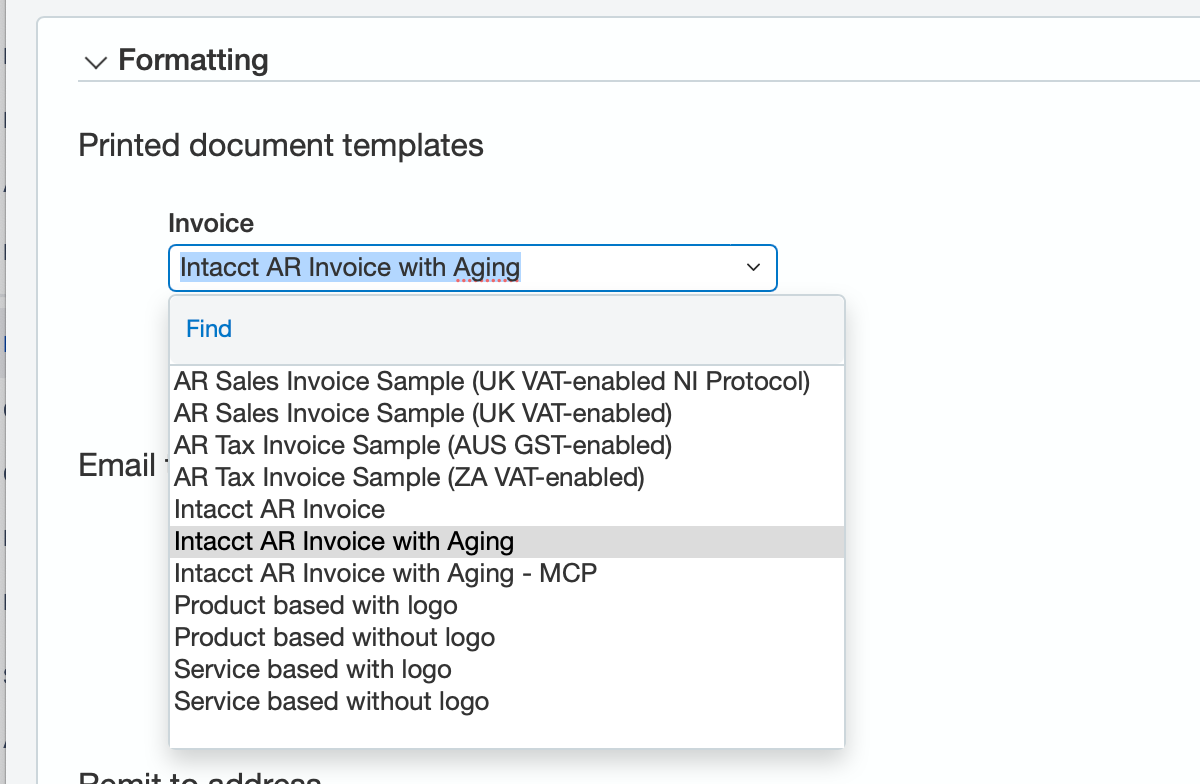
- In the Configure Accounts Receivable page, go to the Printed Document Templates region of the Formatting section and select your template in the Invoice pulldown menu.
- Click Save. This enables your template for AR invoices.
Example of a generated custom template PDF