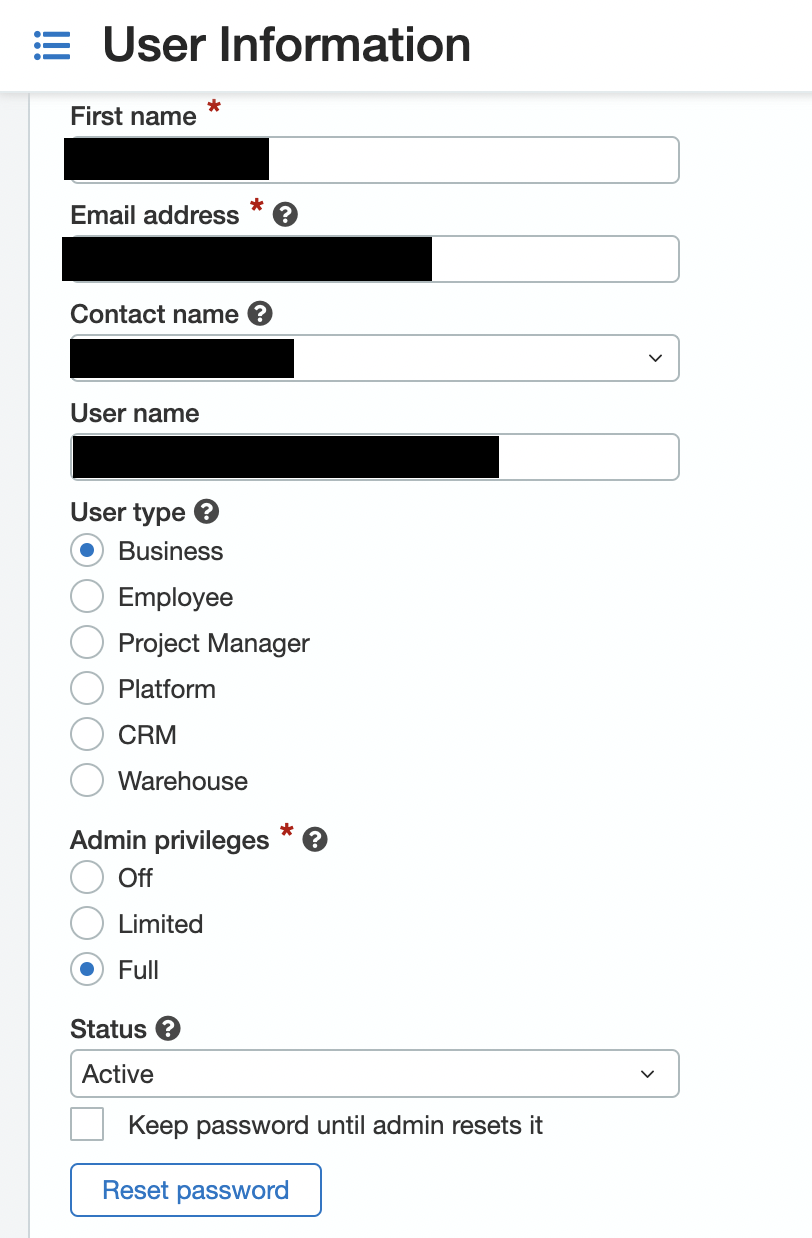
For the Auditoria Customer Success team to review Sage Intacct configurations and perform data integrity checks in Sage Intacct, a business user for Auditoria must be set up with a defined set of permissions. The roles may differ depending on setup considerations and which SmartFlow skills are used. When determining which permissions are required for setup with a System of Record (SoR), all of the standard fields are included in the listed permissions. If a customer requests an extended field through mapping, they must update the permissions to enable Auditoria SmartBots access.
The sections below provide a step by step guide to the business user permissions required to enable review by Auditoria's Customer Success team.
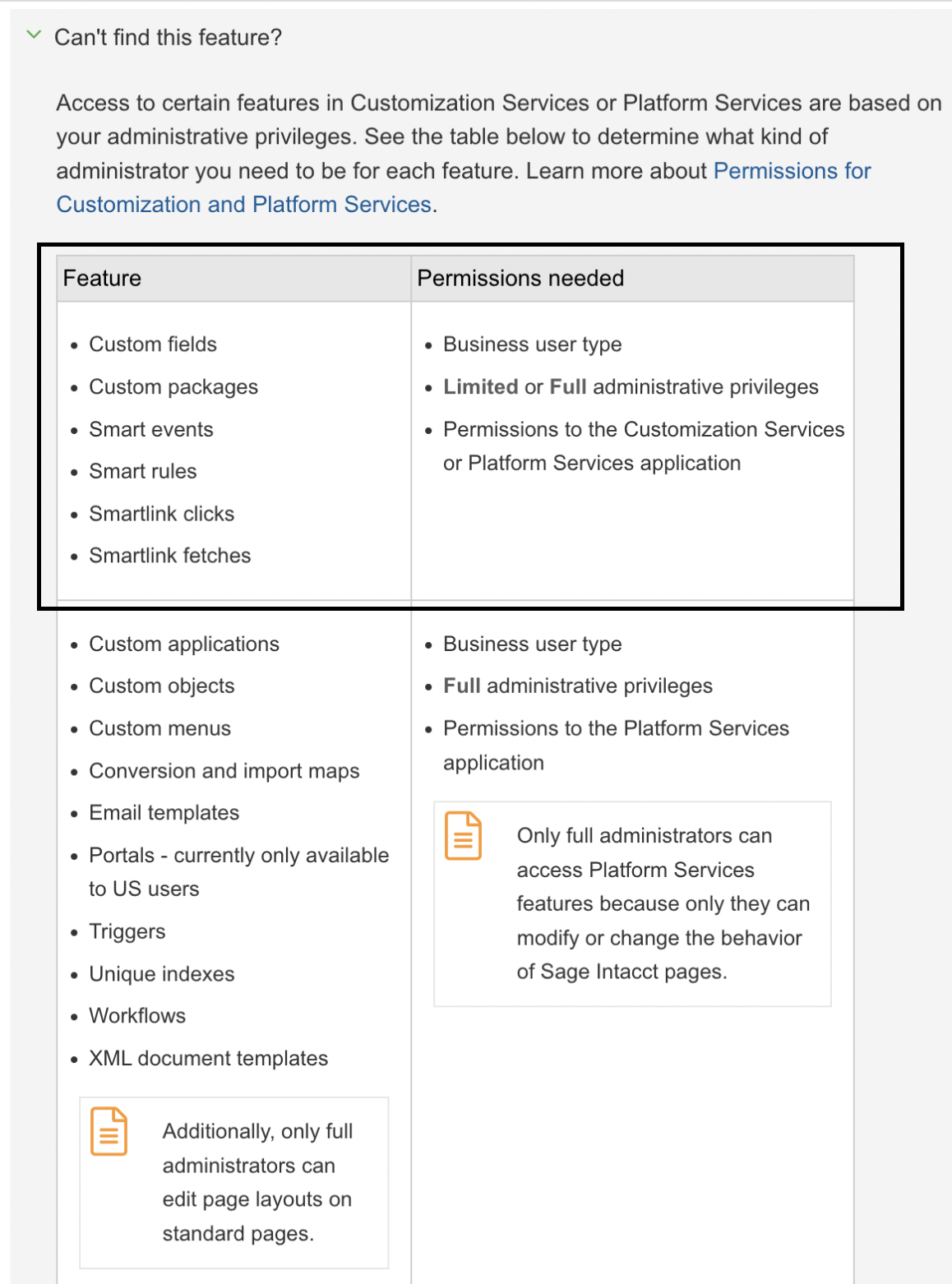
Note: Access to Sage Intacct features in Customization Services or Platform Services is based on administrative privileges. If an expected feature or service does not appear, ask your Sage Intacct System Administrator what permissions are required for that feature or service.
Sage Intacct Business User Permissions for Auditoria
1 - Customer Aging
Access to the Customer Aging Report is required to validate the AR information in the system. In Sage Intacct, go to Accounts Receivable > Reports > Customer Aging and select Reports.
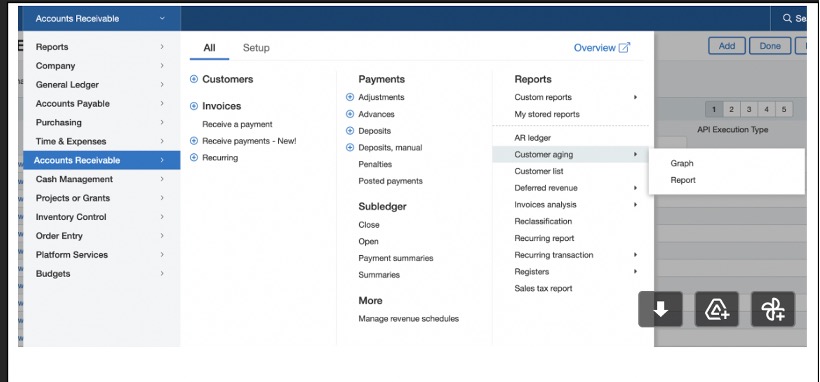
The required permissions details for the Customer Aging Report in Sage Intacct are as follows:

2 - Email Templates
In order for the Auditoria Customer Success team to review the Sage Intacct setup and configuration to send the initial open invoices to Auditoria, the following email template permissions are required.
Go to Company > Setup > Email Templates and select the checkboxes for List, View, and Add.
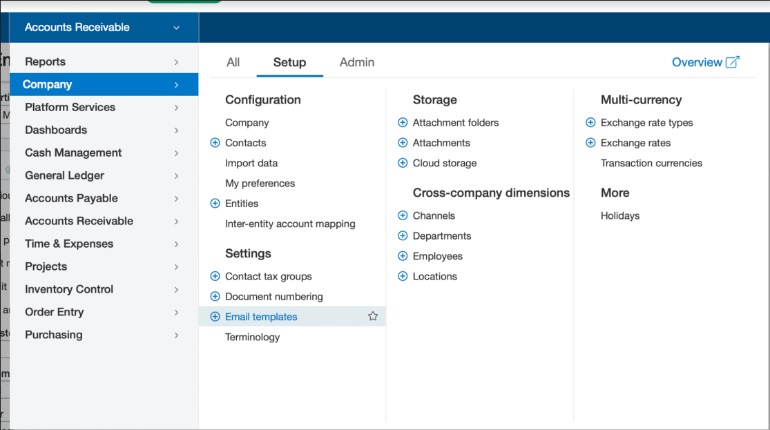
The required permissions details for Email Templates in Sage Intacct are as follows:

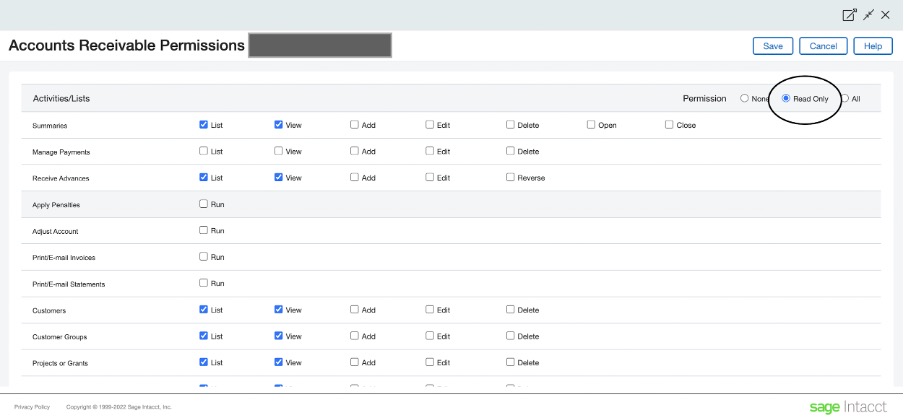
3 - Module Access for AR
Read Only Module Access for AR is a required permission for a Sage Intacct business user. In the Activities/Lists row in the Order Entry Permissions page, select Read Only.
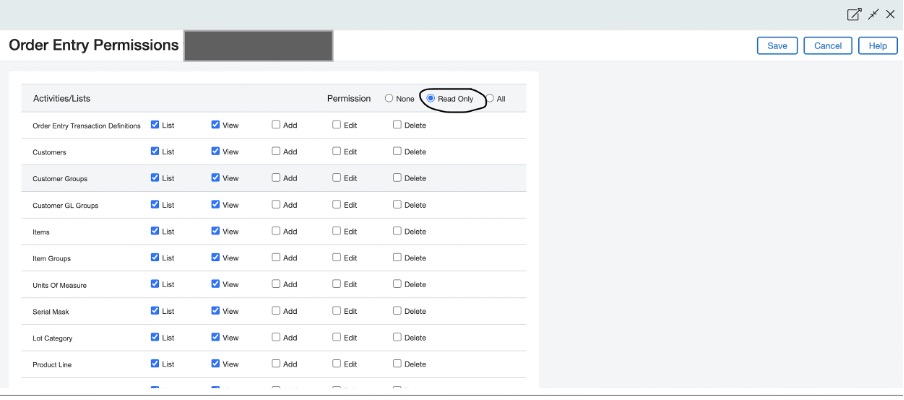
4 - Module Access for Order Entry
Complete Read Only Module Access for Order Entry is required. The permissions settings shown below enable the whole order entry module and are one of the key access settings in the Auditoria setup process.
Go to Order Entry > More > Select Print/Email > Invoices and select Read Only.
5 - Platform Services
In order for the Auditoria Customer Success team to review the Sage Intacct setup and configuration to enable the attachments of invoices in Auditoria, the following platform services permissions are required.
- Platform Services > Printed Document Templates
- Platform Services > Smart Events
5-1 - Printed Document Templates
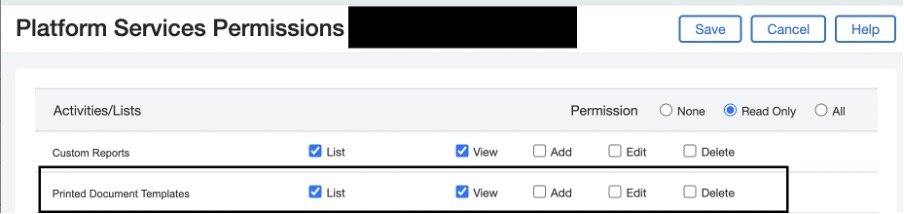
Go to Platform Services > Printed Document Templates and in the Activities/Lists row of the Platform Services Permissions page, select Read Only.
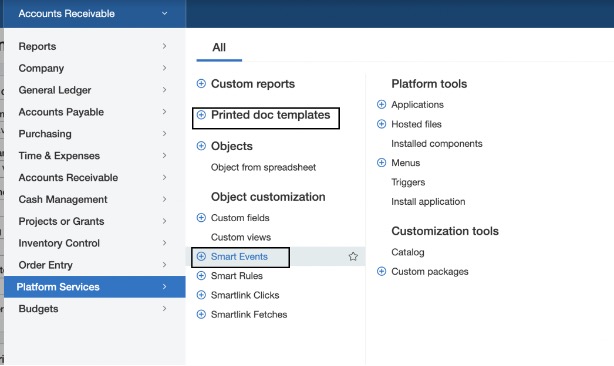
The required permissions details for Printed Document Templates in Sage Intacct are as follows:
5-2 - Smart Events
Full or limited Admin privileges are required for the Sage Intacct business user to access and set up a smart event.