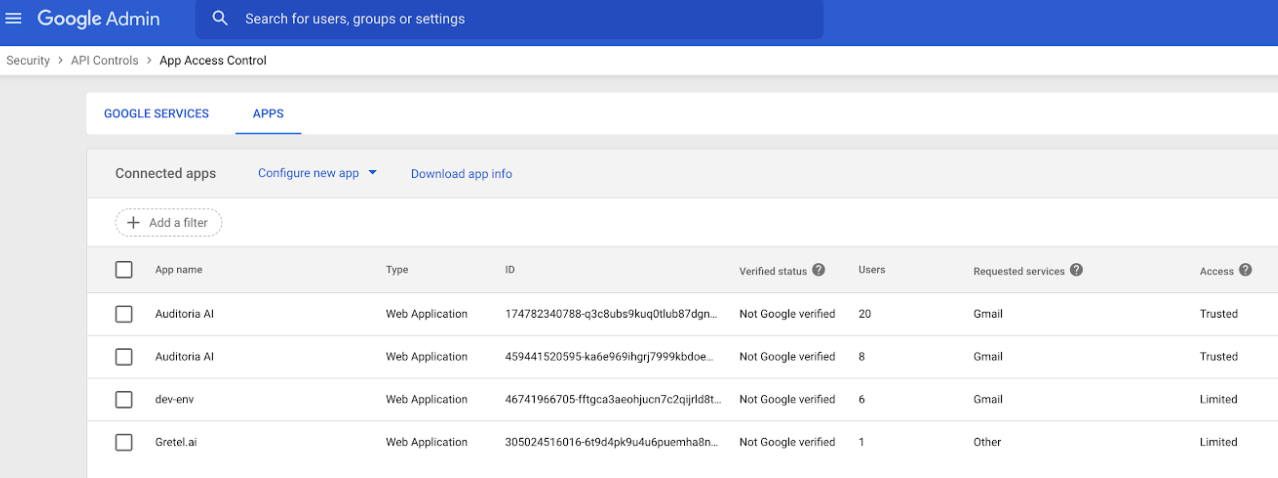
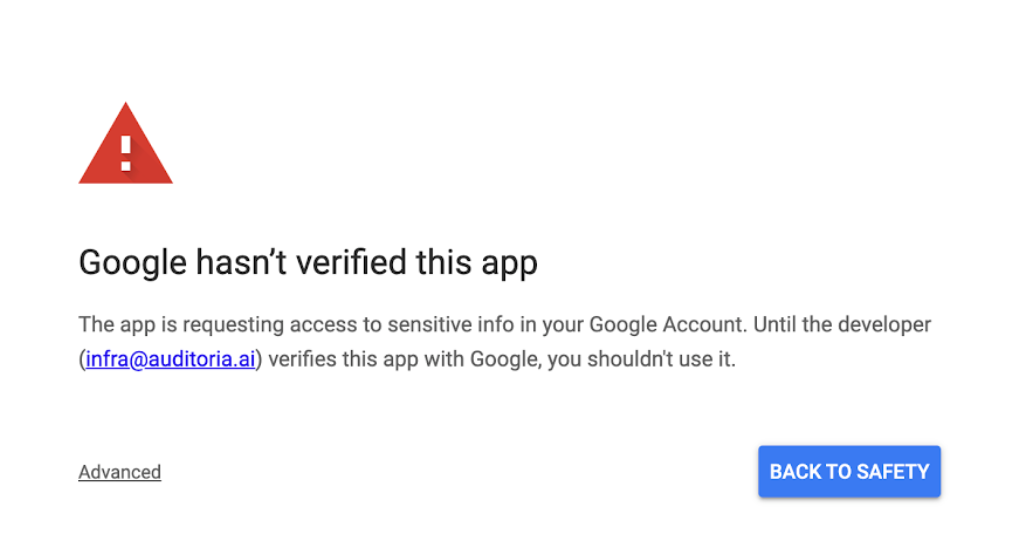
If using Google mailboxes to access Auditoria you may need to authenticate Auditoria in your Google workspace. Google Workspace administrators can verify that Auditoria is enabled by checking the Auditoria setting in the Google App Access Control page. If Auditoria is not authenticated, the following error message occurs.
To update the Access status for Auditoria to Trusted, complete the following steps.
- In the Google Admin page, go to Security > API Controls > App Access Control.
- In the App access control region, click MANAGE THIRD PARTY APP ACCESS.
- In the Configured apps section verify that the Access for Auditoria is Trusted. To change the Access status, click Add app and select OAuth App Name Or Client ID.
- In Configure an OAuth app search field, enter 174782340788-q3c8ubs9kuq0tlub87dgn0d3piu5vpbf.apps.googleusercontent.com and click Search.
- In the App name column, find Auditoria and click Select.
- In the Client ID window, find the checkbox for your app and click Select.
- In the App access window, select the Trusted. Can access all Google services checkbox.
- Click Configure. The Access status for Auditoria is now Trusted.