
To use Auditoria with your Sage Intacct ERP, the Sage Intacct Administrator should complete the following steps and set up your permissions.
- Log in to Sage Intacct with an Administrator account.
- Select Company > Subscriptions (or Company > Admin > Subscriptions) and enable the Web Services subscription.
- Select Company > Company Info. Make a note of the Company ID to use when connecting to Auditoria.
- Select the Security tab.
- Click Edit.
- Under Web Services Authorizations, click the plus sign (+) in the top-right corner.
- Enter the Sender ID, AuditoriaaiMPP.
- Make sure the status is Active.
- Click Save.
Set Up Sage Intacct Permissions
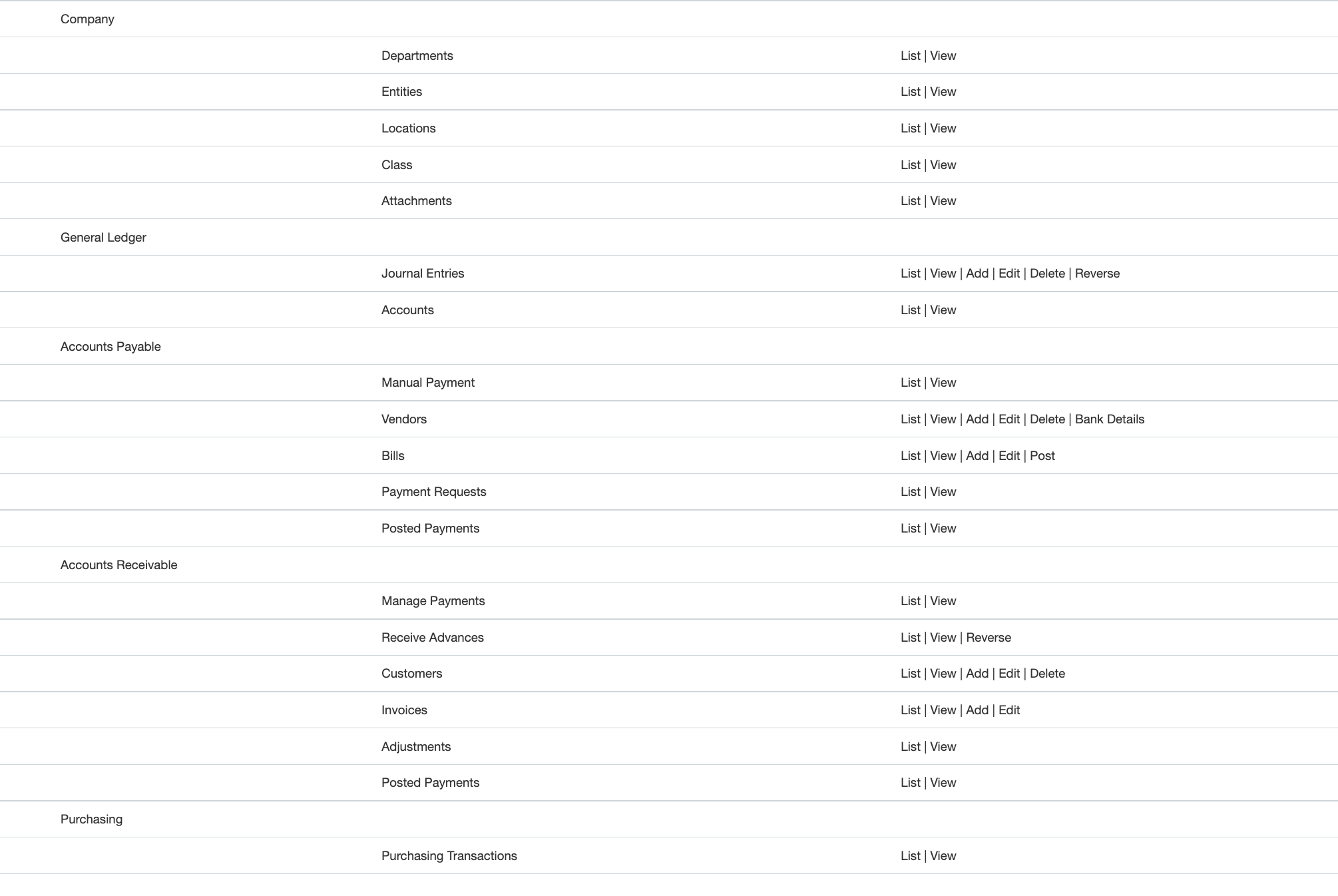
The Sage Intacct Administrator must create a Role in Sage Intacct and provide the Permissions listed below for that role. Auditoria requires a minimum of permissions to be set to enable Auditoria SmartFlows.
Note: If your Sage Intacct setup is based on USER, then add the listed permissions directly to the user created in Step 2 below.
After the permissions have been set up in Sage Intacct, complete the following steps
- Go to Apps > Company > Admin > +Users.
- Select the User created in Step 1 and add the Role created in the Roles Information tab.
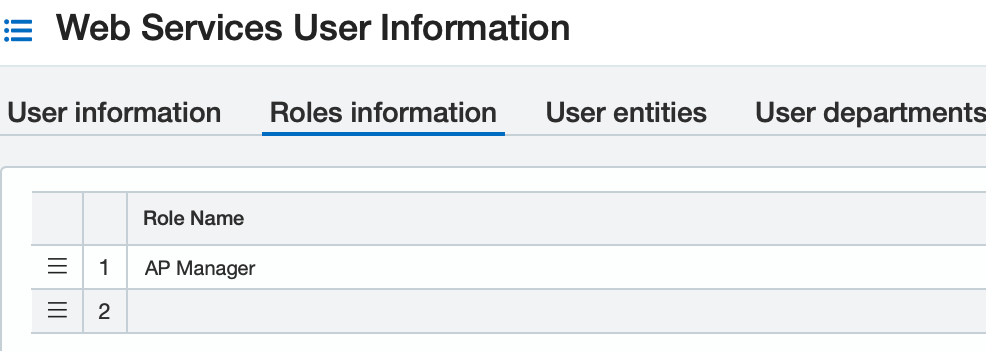
- Make a note of the User ID and Password. You will need this information to connect Sage Intacct to Auditoria.
- Make a note of the User ID and Password to use in the next step. You will need
- Use the Company ID, User ID, and Password to connect Sage Intacct to Auditoria.
Sage Intacct Permissions Table
-
- Accounts Payable
- Manual Payment - List and View
- Vendors - List, View, Add, Edit, Delete, and Bank Details
- Bills - List, View, Add, Edit, Post
- Payment Requests - List and View
- Posted Payments - List and View
- Accounts Receivable
- Manage Payments - List and View
- Customers - List, View, Add, Edit, and Delete
- Invoices - List, View, Add, and Edit
- Posted Payments - List and View
- Posted Advances - List and View
- Receive Advances - List, View, Reverse
- Company
- Entities - List and View
- Attachments - List and View
- Class - List and View
- Departments - List and View
- Locations - List and View
- General Ledger
- Accounts - List and View
- Journal Entries - List, View, Add, Edit, Delete, and Reverse
- Purchasing
- Purchasing Transactions - List and View
- Accounts Payable
-
Note:
Any invoice record flowing into Auditoria must have an Invoice ID, which is a mandatory field for tthe integration. The unavailability of an Invoice ID may lead to data loss and cause issues in the data synchronization.