
You can enable Income Statements in Auditoria by having an Income Statement Report sent by email as a csv file. To send the Income Statement Report email, complete the following steps.
- In Oracle NetSuite, go to Reports.
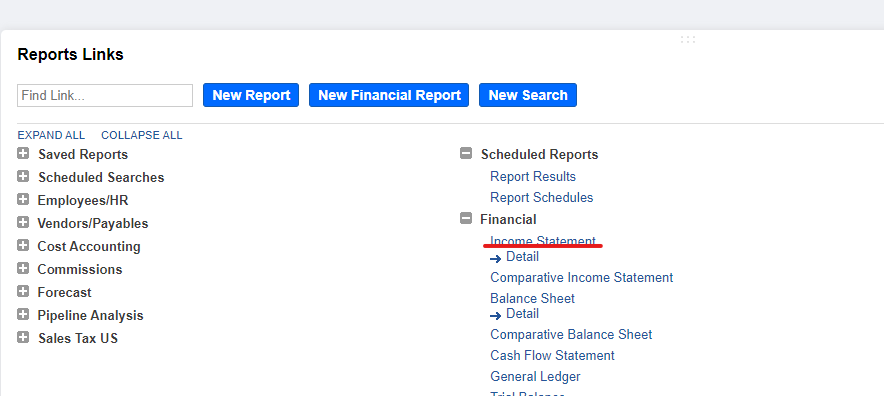
- In the Financial section of the Reports page, click Income Statement.
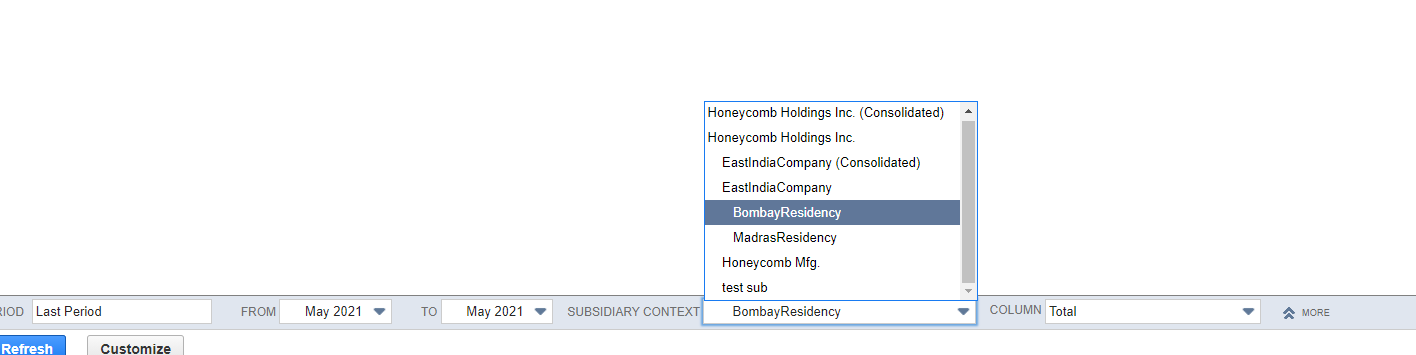
- Select the Subsidiary from the pulldown menu (the Consolidated option is not supported).
- Click Schedule at the bottom right corner.

- In the Schedule page, change the Schedule Name to Income Statement Auditoria <entity>.
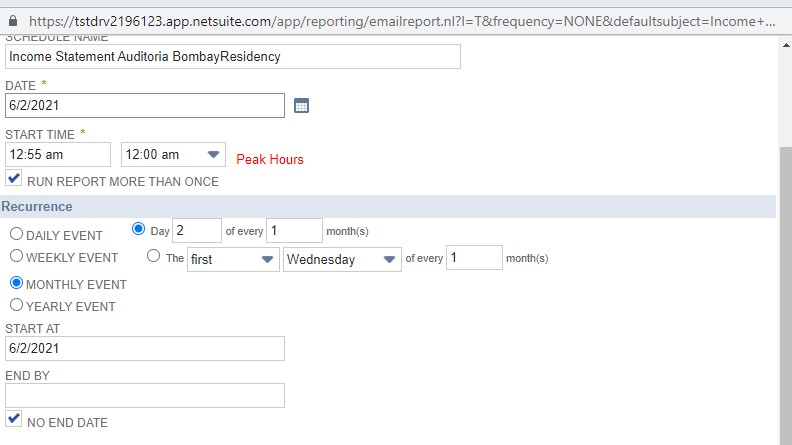
- In the Date field, select the date from the Calendar.
- In the Start Time field, select the start time from the pulldown menu.
- Select the RUN REPORT MORE THAN ONCE checkbox.
- Choose MONTHLY EVENT in the Recurrence section.
- In the START DATE field, enter the start date.
- In the END BY field, enter the end date.
- In the RECIPIENT field, select the vendor or employee with an Auditoria email address from the pulldown menu.

- In the SUBJECT field, enter Income Statement.
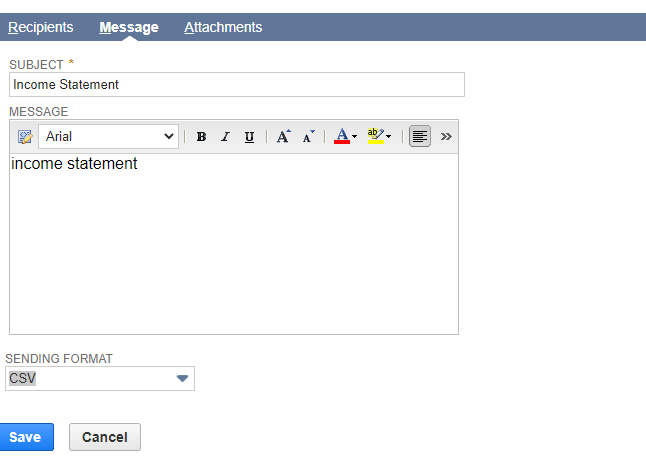
- In the MESSAGE area, enter Income Statement.
- Click Save.