An administrator with a Company subscription to Cloud Storage needs to create a cloud storage option for exporting financial reports to Auditoria. This is a one-time setup event.
- First, add Cloud Storage permission to the administrator role.
Company > Admin > Roles - Find the admin role in the list, then click on Subscriptions (on the right side).
- Find Company, then click on Permissions (on the right side).
- In the Company Permissions popup, scroll down to find Cloud Storage in the list.

- Select all permissions for Cloud Storage, click Save, and exit the popup.
-
Go to Reports > Setup > More > Cloud storage.
This opens the Cloud-Storage Targets page. -
Select the target from the list (if it exists) or add a new one.
-
To add a new one, click Add and fill in the Cloud-Storage Information form.
Storage type: HTTP
Under Storage type details:
Address/URL: https://app.auditoria.ai/api/data-listener/intacct-fin-report
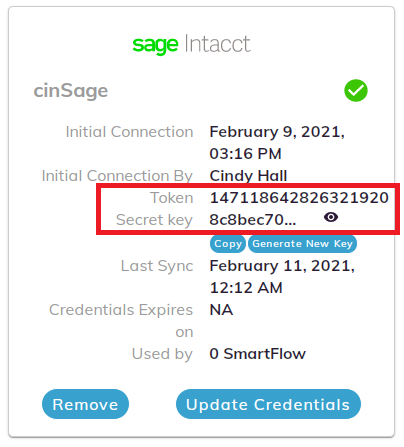
HTTP user name: Copy the token for your Sage Intacct instance that is connected to Auditoria.
HTTP Password: Copy the secret key and paste it here.
To find the token and secret key, see Copying Your Sage Intacct Token and Secret Key.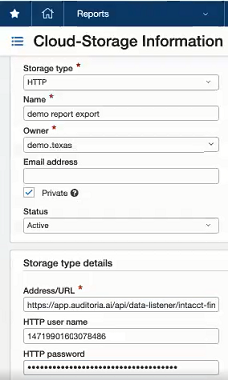
Financial reports can now be exported from Sage Intacct to Auditoria.
- Go to Home> Applications > Reports > Financial reports.
- Select Income Statement > Schedule (on the right side).
- Set the Reporting period for the previous month.
You can either set the Reporting period to Prior Month.
or
You can create another column with the Reporting period set to Prior Month. - Fill in the Schedule Financial Report form.
For the start date, choose the date when you close the books for the previous month.
For example, if you close on the 5th of every month:
Start date: 01/05/2021
Ending on: Never
Recurrence: Months
Every: 1 - Under Delivery options, select Store in cloud.
- Select the new cloud storage target you created in step 8.
- Enter the Report Name as income_statement.
- Select the Report Type as CSV from the dropdown.
- Click Save.
Copying Your Sage Intacct Token and Secret Key
- Log in to Auditoria.
- Click the gear icon
 and select System Settings.
 - Copy the Token and the Secret key for your Sage Intacct instance.
To copy the secret key, click Copy. You may need to generate a new key.
You will use these credentials for the user name and password in Sage Intacct.